AR Drawing - Paint & Sketch
- 4.2
- Rating
- 1.00M
- Installs
- Free
- Price
 Analysis by App-foxy
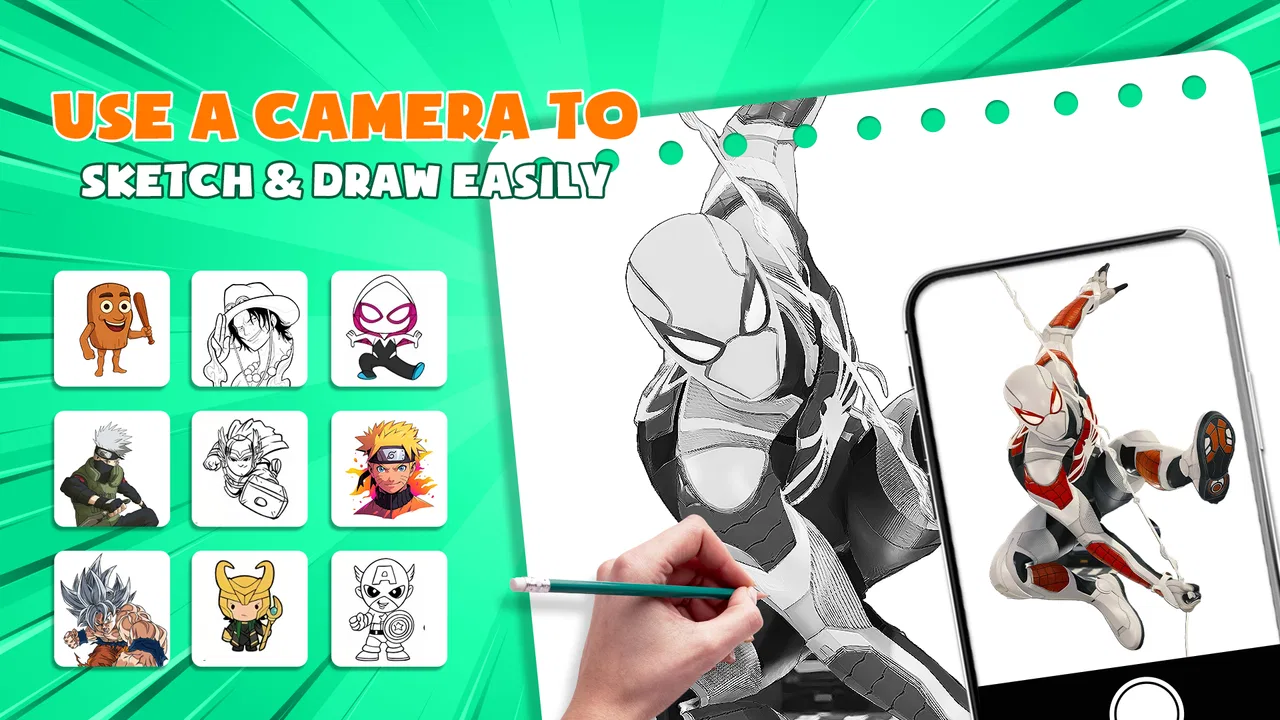
I approached AR Drawing - Paint & Sketch as a practical tool rather than a replacement for a full drawing studio. Its appeal is simple: it helps you place an anime or sketch reference into your real surroundings through augmented reality, then use that view as a guide while drawing on paper. That makes it especially interesting for beginners who understand what they want to draw but struggle to judge proportions, angles, or placement by eye.
My first impression was that the app is aimed at reducing the intimidating blank-page feeling. Instead of asking you to remember every line from a reference image, it gives you a visual structure to follow. The result depends heavily on how carefully you set up your phone and paper, but the idea is useful for practice, tracing exercises, and quick creative projects. I would not treat it as an automatic drawing machine. I would treat it as a bridge between looking at an image and learning how to reproduce it yourself.
How I would decide whether this drawing app suits me
The most important question is not whether AR sounds impressive. It is whether you want help with physical drawing. If your goal is to create finished illustrations entirely on a phone or tablet, a conventional digital art app will usually be the more natural choice. If you want to draw with a pencil, marker, or pen on real paper while using a reference that stays visible in front of you, this app has a much clearer purpose.
You May Also Like

 Blood Strike: 2.5 Anniversary
Blood Strike’s Loadouts Turn Every Drop Into a Tactical Gamble
A close look at Blood Strike’s custom loadouts: how fast access to signature weapons reshapes its battle royale rhythm, rewards preparation, and narrows the gap between fights.

 Pandora - Music & Podcasts
Pandora’s Music Is Easy to Start, but Harder to Recover
Pandora’s strength is its low-effort path from a seed to a station. Its weak spot is how much confidence it asks you to place in connection, setup, and quiet recovery.

 8 Ball Pool
 Is Built on Rivalries, Rematches, and Routine
A close look at the rivalries, rematches, shared routines, and unanswered safety questions that turn a quick pool match into a persistent mobile community.

 Samsung Music
’s Quiet Strength Is Playing What You Already Own
Its reach comes less from spectacle than from dependable access to a personal library. That simplicity is both the app’s strongest retention engine and its ceiling.

 AccuWeather: Weather Radar
AccuWeather Review: A Quick, Clear Forecast for Everyday Decisions
For everyday plans, the best forecast is the one you can understand quickly. AccuWeather makes rain timing, radar, and local conditions easy to act on, with a few trade-offs.

 Hill Climb Racing
Why Hill Climb Racing Still Turns Crashes Into One More Run
A tiny car, a bumpy hill and one more upgrade: Hill Climb Racing keeps resurfacing because its simple chaos makes every near-miss feel personal.
More From Our News Desk



I would also consider your experience level. Someone new to anime drawing may benefit from having a stable visual guide for the head shape, eyes, hair, clothing, or pose. A more experienced artist may find the process slower than sketching from observation, especially when the phone position needs adjusting. The app makes the first steps less confusing, but it does not remove the need for hand control, patience, or decisions about line quality.
The practical environment matters too. You need a surface where the paper can remain still and a phone position that lets you see both the display and the page. A crowded desk, poor lighting, or a constantly moving setup can make the AR overlay feel more frustrating than helpful. I found that the experience works best when I prepare the workspace first instead of opening the app and trying to improvise everything.
There is also a difference between learning and copying. The overlay can help you understand where a line belongs, but following it too mechanically may slow the development of observation skills. My preferred approach is to use the guide for the initial construction, then look away from it and redraw selected details from memory. That turns the app into a practice aid rather than a shortcut that I depend on for every sketch.
What the app is designed to do well
AR Drawing - Paint & Sketch is an Art & Design app from LOGICLABS LIMITED. It is free to use, carries an Everyone content rating, and is available for devices running Android 7.0 or later. The current version is 1.6.2. Those details make it approachable for families, casual hobbyists, and students who want to experiment without committing to specialist hardware or a paid desktop program.
Its public reach also suggests that the concept is easy for many people to understand: it has passed one million installs and holds a 4.4 average from around ten thousand ratings. I see those figures as a sign of broad interest rather than proof that every user will enjoy the workflow. AR drawing is a particular kind of creative experience, and its usefulness depends more on your preferred medium than on popularity alone.
The app was released on August 19, 2025, which places it among relatively recent tools in this space. I mention that because expectations should remain realistic: a newer app can feel focused and accessible, but it may not offer the mature depth that artists expect from established digital suites. For a quick sketching aid, that trade-off is reasonable. For a long-term professional illustration workflow, I would compare it carefully with more specialized software.
Where the AR approach makes a real difference
The strongest part of the experience is the relationship between the screen and the physical page. A normal reference image asks me to shift my eyes repeatedly between the picture and my drawing. An AR guide can make that relationship more direct, because the reference appears aligned with the surface I am working on. That is particularly helpful when I am trying to place the overall silhouette before worrying about details.
Anime faces are a good example. Small changes in eye height, jaw width, or hair direction can alter the character’s expression. A beginner may know that something feels wrong without knowing which proportion caused the problem. Using an overlay gives a clearer starting point. I can lightly establish the main shapes, remove the guide from my attention, and then refine the drawing with my own choices.
Another useful case is drawing with children or friends who feel uncomfortable with traditional lessons. The immediate visual feedback makes the activity feel more like an experiment than an exercise. I can set up a simple reference, let someone follow the large shapes, and then encourage them to change the hairstyle, expression, or clothing. That keeps the app from becoming only a tracing tool and gives the session a more personal result.
I also like the possibility of using it for short practice sessions. If I have only a few minutes, I can focus on one feature rather than attempting a complete polished illustration. One session might be devoted to eye placement, another to hair masses, and another to the balance of a standing pose. This is more productive than opening a large digital art program and spending the available time choosing brushes or arranging panels.
Three techniques that make the workflow more useful
First, I recommend starting with a light construction pass. Do not press hard or commit to every visible line immediately. Use the overlay to establish the largest forms, then turn your attention to the drawing itself. This prevents the common mistake of producing a technically accurate outline that has no room for personal cleanup or stylistic changes.
Second, I would deliberately introduce a second pass without the overlay. After placing the main shapes, hide or ignore the guide and redraw the eyes, hair strands, or clothing folds from what you remember. Comparing the two stages helps reveal which forms you actually understand. It also reduces dependence on the phone, which is important if your long-term goal is to draw independently.
Third, use the app for correction rather than only for copying. If a sketch feels unbalanced, bring up a reference and check one area at a time. You might discover that the head is tilted differently from the shoulders, or that the hands sit too low in relation to the torso. This diagnostic use is more valuable than tracing an entire image because it teaches you how to identify structural errors.
A fourth habit is to keep the phone and paper arrangement consistent during a single drawing. Even a small shift can change the relationship between the projected guide and the page. I would mark the paper position with removable tape or a light pencil corner if I am taking a break. That simple step saves time when returning to a partly finished sketch.
Everyday situations where I would actually use it
Imagine a rainy afternoon when I want to draw an anime character but cannot decide where to begin. I can place paper on a clear table, position the phone, choose a reference, and spend fifteen minutes blocking in the pose. The app gives the session a concrete starting point. I can then continue with my own shading and details after putting the phone aside.
It could also work well for a school art activity or a casual weekend project. A group can try the same basic subject and then personalize the result with different colors, expressions, or costumes. Because the app is free and rated for Everyone, it is easier to suggest in a mixed-age setting than a tool built around advanced professional controls. Adult supervision and sensible device handling are still good ideas with younger users, but the concept itself is approachable.
For someone practicing character design, the app may be most useful at the thumbnail stage. I can use a guide to understand a pose, then make several small variations rather than spending an hour polishing the first attempt. That encourages experimentation. It also exposes a limitation: if I want to create an original pose from imagination, the app can support the process but cannot replace my own planning.
Where a conventional drawing app may be better
A digital painting app is the better option when I need layers, undo controls, precise color work, brush customization, or a finished image that can be edited repeatedly. Those tools are built around creating directly on the screen, while this AR app is built around using the screen to support drawing somewhere else. Choosing between them is less about which is superior and more about where I want the final artwork to exist.
A static reference viewer may also be preferable for experienced artists. It keeps the image available without requiring alignment between a camera view and a physical surface. If I already understand perspective and proportions, the extra AR setup may not offer enough benefit to justify the additional step. A printed reference can serve the same purpose with less technology and no need to keep checking the phone’s position.
On the other hand, a standard tracing workflow can be more reliable when exact transfer is the priority. If I need clean reproduction for a craft project, poster, or lettering exercise, physical tracing methods may provide steadier results. AR is more appealing when I want to learn, sketch, and adjust rather than simply reproduce an image with maximum precision.
This is also not the right choice for someone who dislikes drawing on paper. The app’s central value comes from the physical act of sketching. If I want to work during a commute, in a dark room, or in a place without a stable surface, a mobile canvas is more convenient. The AR format asks for a little preparation, and that friction should be part of the decision.
What switching to this workflow really costs
The financial barrier is low because the app is free, but switching workflows still has a time cost. I need to arrange the page, find a comfortable viewing angle, keep the phone steady, and learn how much of the guide I should follow. Someone moving from a normal drawing app may initially miss the speed of tapping undo or zooming into a digital canvas.
There is a creative cost as well. An overlay can make a drawing look more accurate quickly, but accuracy is not the same as understanding. If I use it for every decision, I may become less comfortable with freehand construction. I would therefore set a rule for myself: use the guide for structure, then make the final choices independently.
The physical setup can affect comfort. Holding a phone or repeatedly looking between the display and paper may become tiring during a long session. I would keep projects short at first and adjust the surface height before blaming the app. If the experience still feels awkward, a tablet-based drawing application or a simple printed reference may be a better match.
There is also a learning curve in judging when to stop following the guide. Beginners often try to capture every line, including details that should be simplified or changed. I get better results when I treat the projected image as a suggestion: large shapes first, important landmarks next, and decorative details only after the drawing feels stable.
My recommendation for different kinds of users
I recommend AR Drawing - Paint & Sketch to beginners who want to practice anime-style drawing on paper and need help getting proportions started. It is also a good fit for casual creators, parents looking for a guided art activity, and anyone curious about combining a phone with traditional sketching. The free price and Everyone rating make it easy to try without making the decision feel serious.
I would recommend it more cautiously to intermediate artists. If you are exploring poses, correcting construction, or teaching yourself to observe shapes, the AR guide can be useful. If you already draw confidently and mainly want advanced digital editing, it may feel limited compared with a dedicated illustration application.
I would skip it when my priority is a polished digital workflow, extensive editing, or drawing anywhere without a physical setup. In those situations, a conventional digital art app, a tablet canvas, or even a printed reference can be more efficient. The app earns its place when its specific AR relationship with paper solves a problem that those alternatives do not solve as comfortably.
My final view is positive but practical. The best way to use this app is as training wheels, not as a permanent substitute for learning to draw. It lowers the barrier to starting, gives beginners a clearer sense of proportion, and creates a playful way to turn a reference into a physical sketch. Its limitations become obvious when I expect professional digital controls or effortless portability.
For me, the deciding factor is whether I want to make marks on real paper. If the answer is yes, this is a worthwhile free experiment, especially for anime practice and short guided sessions. I would begin with simple forms, keep the phone stable, use the overlay lightly, and finish at least part of each drawing without it. Used that way, AR Drawing - Paint & Sketch is not merely showing me where to place lines; it is helping me understand why those lines belong there.
FAQs for AR Drawing - Paint & Sketch
01What is AR Drawing - Paint & Sketch, and how does it work?
AR Drawing - Paint & Sketch is an innovative app that uses augmented reality to help users draw and sketch. By overlaying virtual images onto real-world surfaces, the app guides users to create accurate and detailed drawings. Simply point your device at a surface, and follow the on-screen instructions to start sketching.
02Is AR Drawing - Paint & Sketch suitable for beginners?
Yes, AR Drawing - Paint & Sketch is designed with beginners in mind. The app offers easy-to-follow tutorials and step-by-step guides that help new users navigate the basics of drawing. Advanced features are also available for more experienced artists, making it suitable for all skill levels.
03What devices are compatible with AR Drawing - Paint & Sketch?
AR Drawing - Paint & Sketch is available for both Android and iOS devices. However, it requires devices that support augmented reality technology, such as ARCore on Android or ARKit on iOS. Make sure your device meets these specifications before downloading to ensure optimal performance.
04Are there any in-app purchases or subscriptions in AR Drawing - Paint & Sketch?
Yes, while AR Drawing - Paint & Sketch offers a free version with basic features, there are in-app purchases available. These may include additional tools, brushes, and templates. Users can also subscribe to a premium version for exclusive content and an ad-free experience, enhancing their creative process.
05How can I share my artwork created in AR Drawing - Paint & Sketch?
Sharing your artwork is simple with AR Drawing - Paint & Sketch. After completing a drawing, you can save it directly to your device's gallery. The app also provides options to share your creations on social media platforms like Instagram, Facebook, or Twitter, allowing you to easily showcase your art to friends and followers.
Pros
- Intuitive interface for easy navigation.
- Wide variety of drawing templates available.
- Supports layering for complex designs.
- Works offline
- no internet needed.
- Compatible with both stylus and finger.
Cons
- Limited color palette in free version.
- Ads can be intrusive during use.
- No option for high-resolution exports.
- Occasional lag on older devices.
- In-app purchases can be pricey.

AR Drawing - Paint & Sketch
Gallery